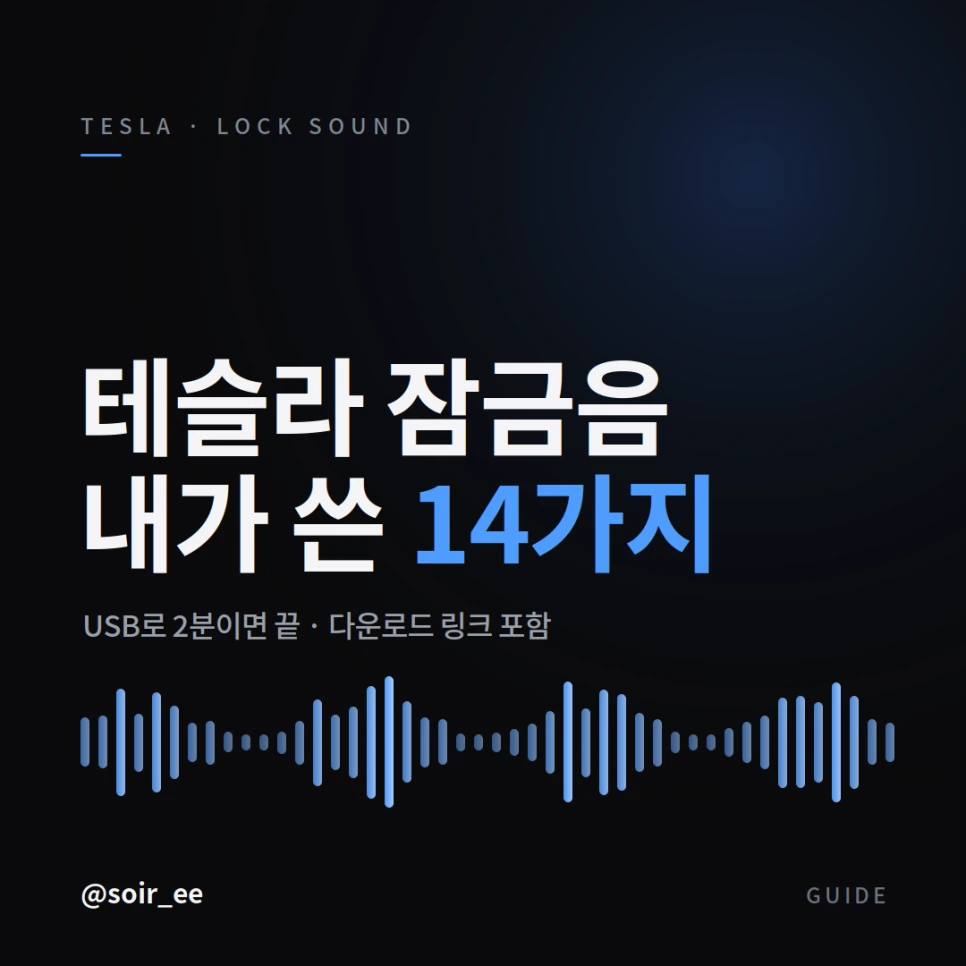
Give your Tesla a lock sound of its own. Here are 14 sounds to explore, from JARVIS and Netflix to F1 team radio, with download links and a USB setup guide.
Before you start
Your car needs an external pedestrian warning speaker and the Lock Sound option in Toybox → Boombox. Availability depends on your vehicle, region and software. Check the menu in your car first.
The sound plays through the outside speaker, so it may sound different from your phone.
Set up your lock sound
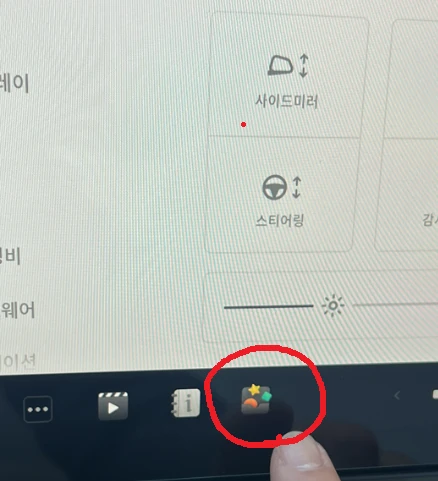
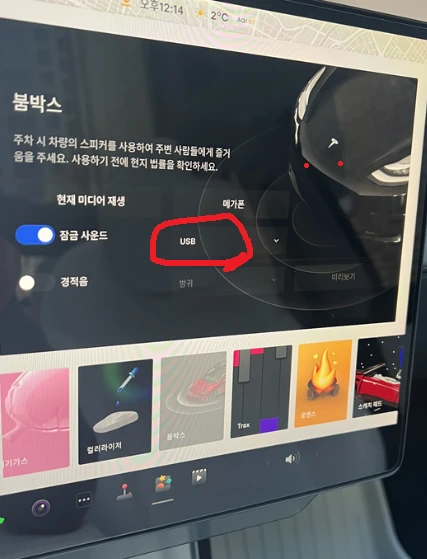
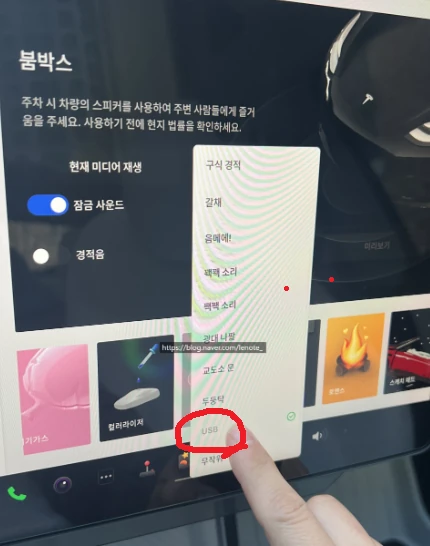
You’ll need a USB drive formatted as FAT32 or exFAT and a data-capable USB port in your car. The screenshots below show Korean menus; follow the English menu names in these steps.
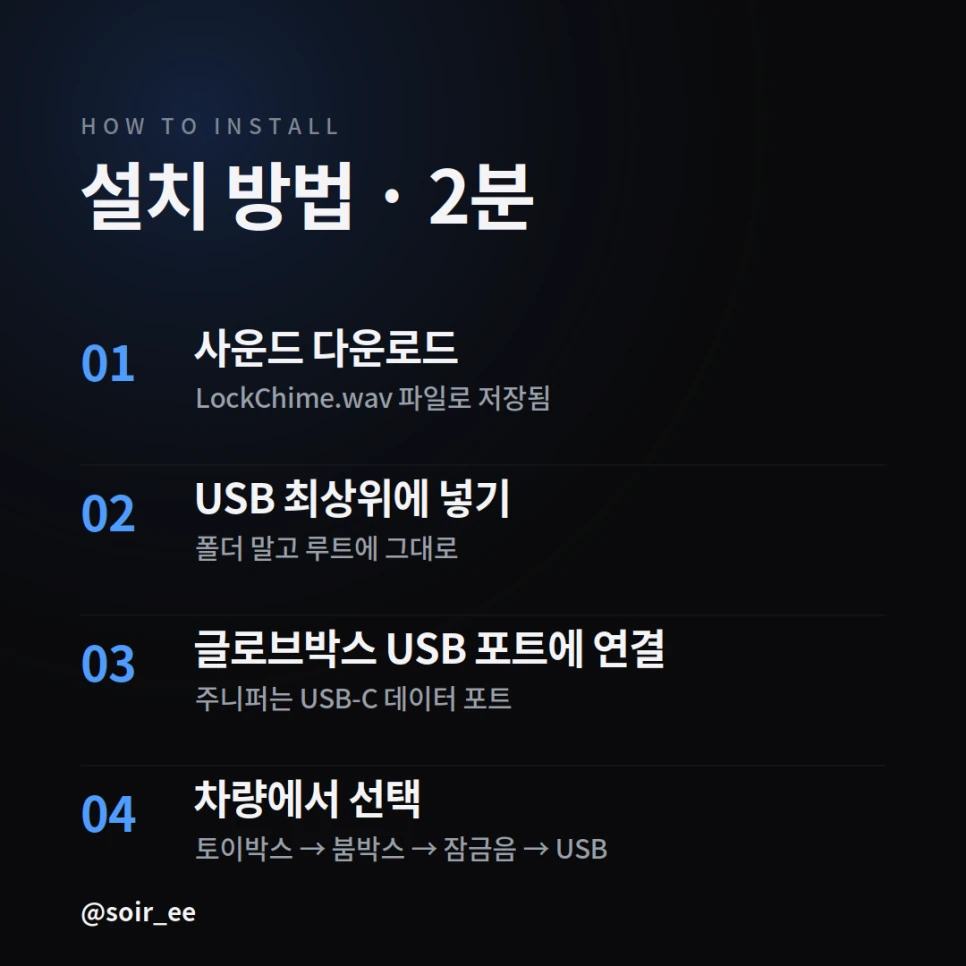
1. Download a sound
Choose a sound from the list below and download the WAV file. Name it exactly LockChime.wav, with a capital L and C.
2. Copy it to your USB drive
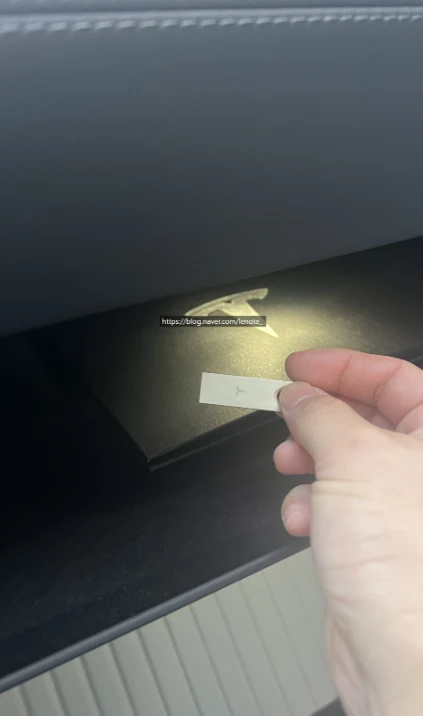
Put LockChime.wav directly on the USB drive, outside any folders. Keep only one file with this name.
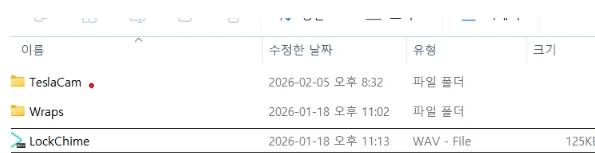
3. Connect the USB drive
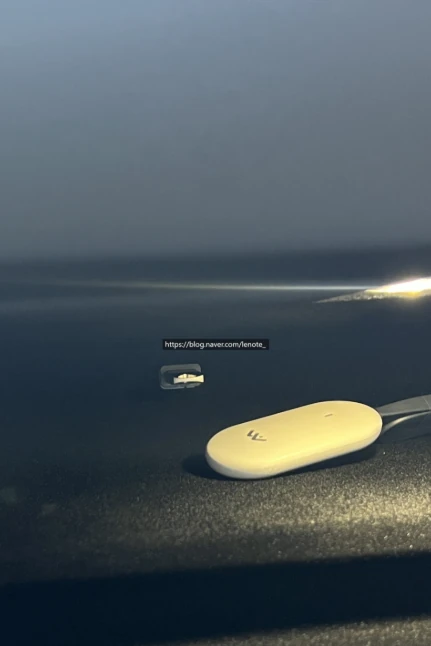
Plug it into a USB port that supports data, such as the glovebox port on recent Model Y vehicles. A charging-only port cannot read the file.
4. Select it in the car
Open Toybox → Boombox → Lock Sound and select USB. Lock the car to try your new sound.
To change it later, replace the LockChime.wav file on the drive. Only one custom lock sound is active at a time.
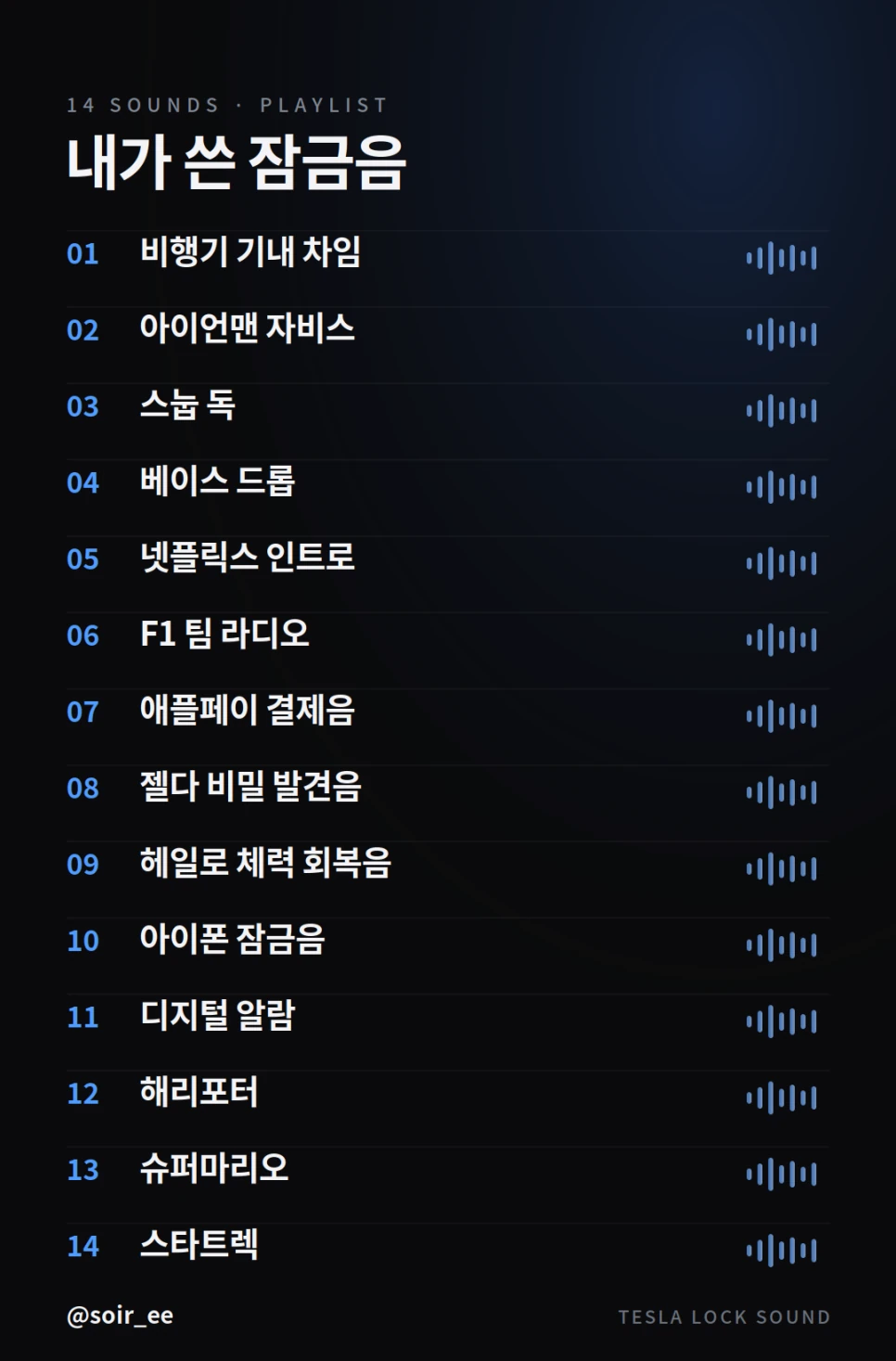
Choose a sound
Tap a sound name to visit its download page and listen before choosing.
| # | Sound | What it sounds like |
|---|---|---|
| 01 | Airplane cabin chime | A familiar boarding announcement chime |
| 02 | Iron Man — JARVIS | A defense-protocol voice |
| 03 | Snoop Dogg | A playful rap meme |
| 04 | Bass drop | Deep dubstep bass |
| 05 | Netflix intro | The iconic ta-dum |
| 06 | F1 team radio | Race-day radio chatter |
| 07 | Apple Pay | A payment confirmation chime |
| 08 | Zelda — secret discovery | The sound of finding a secret |
| 09 | Halo — health regeneration | A sci-fi recovery sound |
| 10 | iPhone lock | A familiar lock click |
| 11 | Digital alarm | A crisp electronic alert |
| 12 | Harry Potter — Hedwig’s Theme | A magical melody |
| 13 | Super Mario — game over | The classic game-over sound |
| 14 | Star Trek — security enabled | A computer security notification |
Troubleshooting
No sound, or only the default sound?
Check the exact filename, make sure the file is outside all folders, and confirm your USB drive format and data port. Watch for an accidental double extension such as LockChime.wav.wav. Reconnect the drive and select USB again.
Too quiet?
Try another sound file with a higher recording volume, then test it through the car’s outside speaker.