Before you start
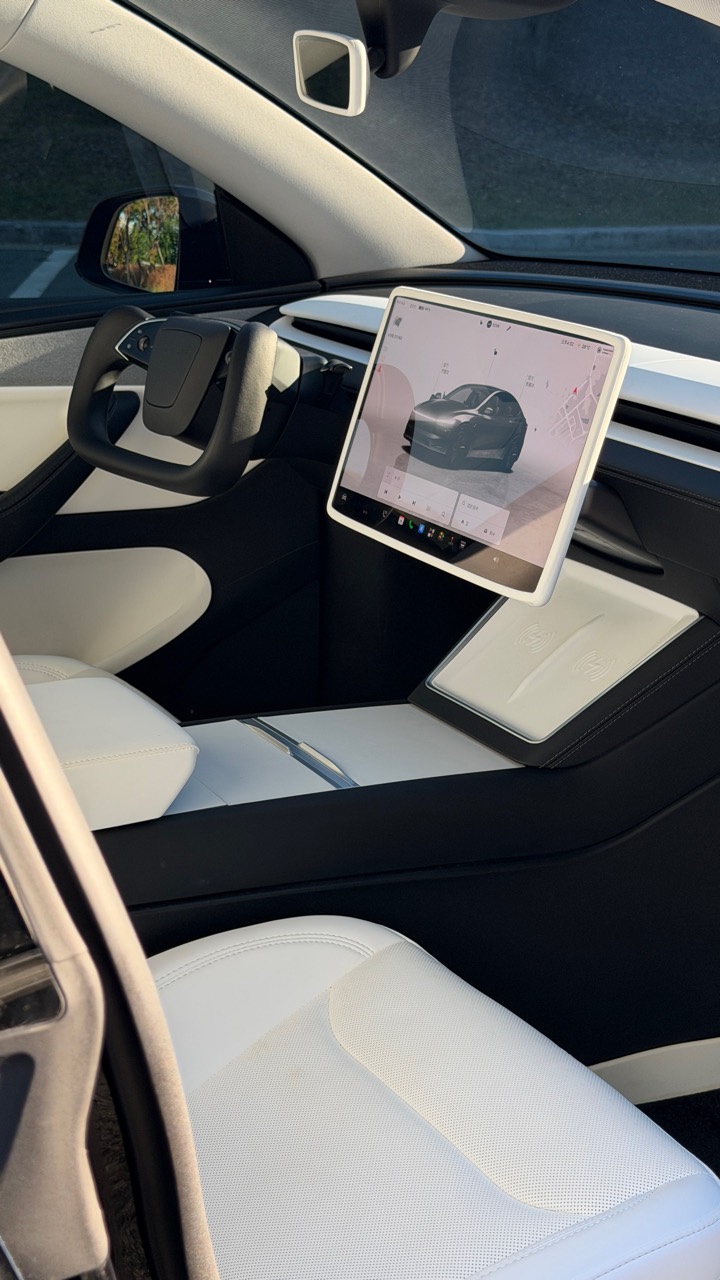
On the day I picked up my Tesla, I left my iPhone inside while filming around the car. I couldn’t get back in. The roadside service I called said they couldn’t unlock it, so I had to wait for a family member to bring the key card.
After that, I set up a backup: an iPhone automation that runs Tesla’s unlock action when a message containing a private phrase arrives.
- An iPhone with Shortcuts and the Tesla app installed.
- The Tesla app signed in with access to your vehicle, and the car’s Allow Mobile Access setting enabled.
- A working key card kept outside the car while you set up and test the automation.
The original screenshots use Korean menus. Follow the English labels below; the layout and available actions can vary with iOS and Tesla app versions.
01 Open Shortcuts
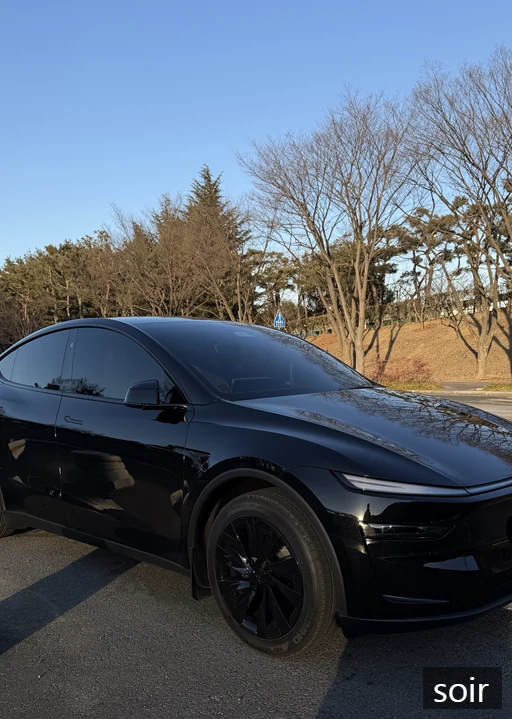
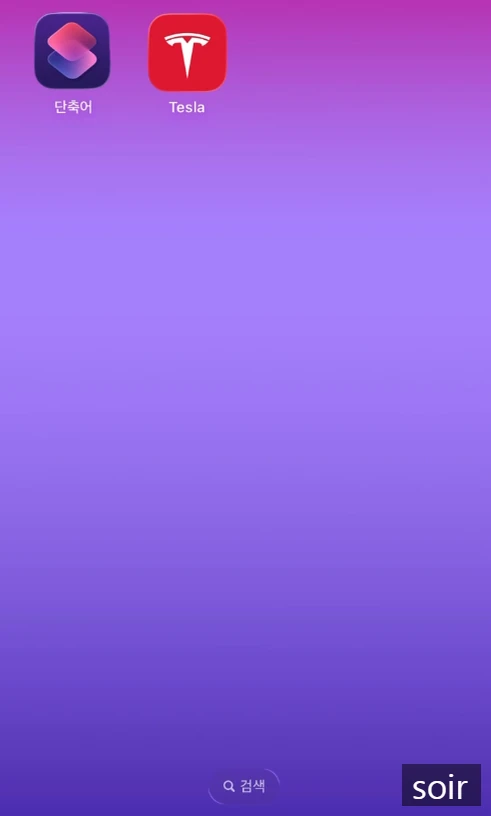
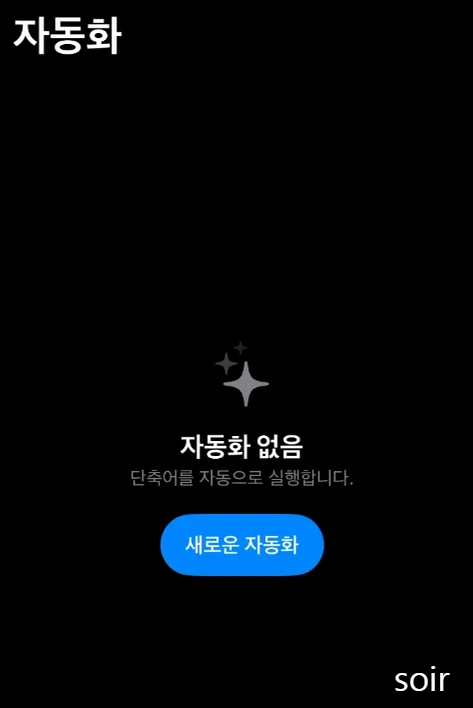
Shortcuts → Automation
Open the Shortcuts app on your iPhone and select Automation.
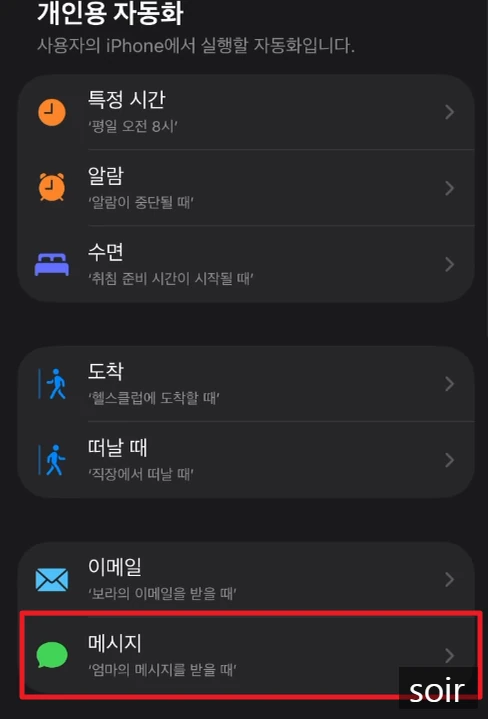
02 Create a message automation
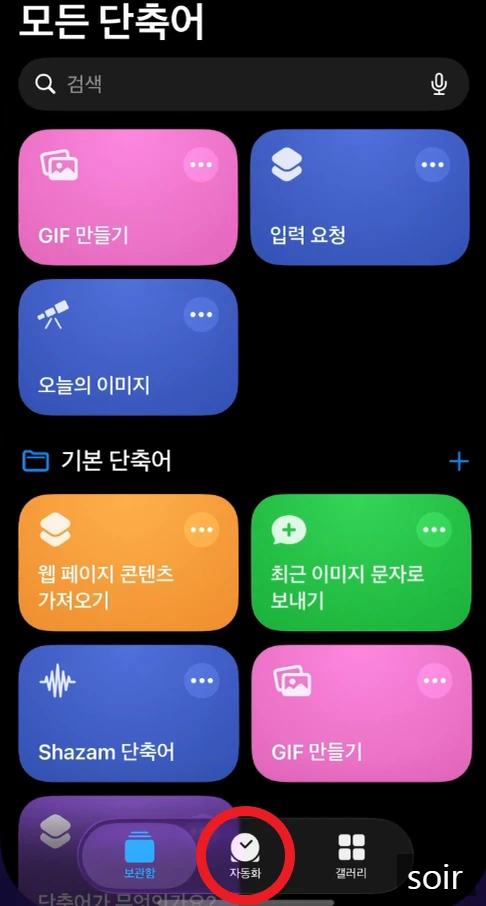
New Automation / + → Message
Tap New Automation or the + button, then choose Message. If your version shows Create Personal Automation, choose that first.
03 Choose the message conditions
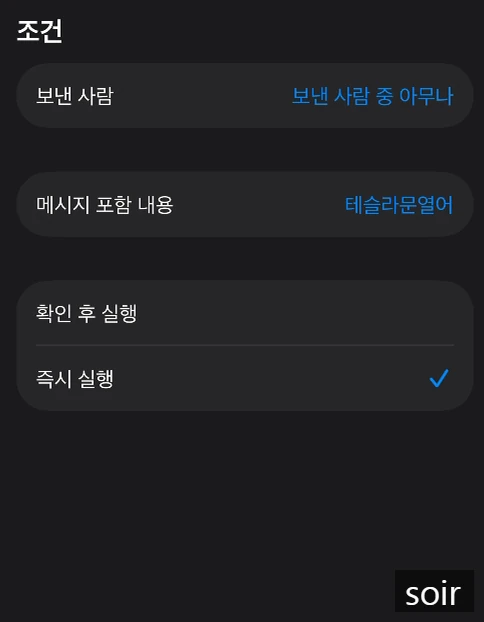
Message Contains → Your private phrase → Run Immediately
- Sender: choose a trusted family member or contact for a more restricted setup. The original example allows messages from anyone; with that setting, anyone who knows the phrase can trigger the unlock action.
- Message Contains: enter a long, unique phrase that you do not use in ordinary messages. Don’t reuse the example shown in the screenshot.
- Select Run Immediately, rather than Run After Confirmation, if these options appear.
If you specify both a sender and a phrase, the message must match both conditions.
04 Add the Tesla unlock action
Next → Add Action → Tesla → Unlock → Your vehicle
Continue to the action screen. If prompted, choose New Blank Automation, then search for Tesla or Unlock. Select the Tesla action and set it to Unlock for your vehicle.
Choose the Tesla action, not an iPhone screen-lock action. Check the selected vehicle if you have access to more than one Tesla.
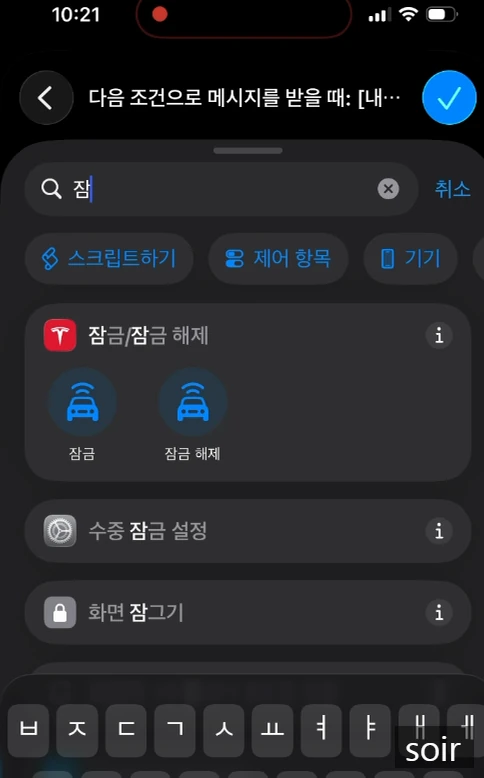
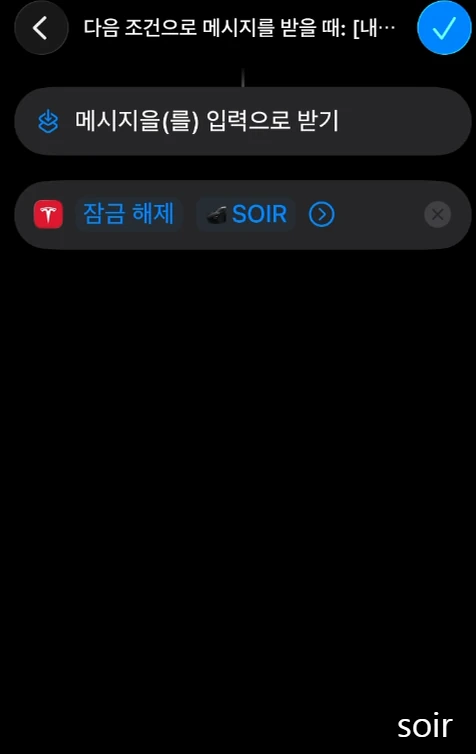
Already have a working Tesla unlock shortcut? You can use Run Shortcut and select that shortcut instead.
05 Save, allow and test
Done → Allow requested permissions → Test with the iPhone locked
Save the automation. Run the action once and approve any permissions requested by Shortcuts or the Tesla app.
Keep your key card with you, lock the iPhone screen, and ask the selected contact to send the phrase. Confirm that the automation can unlock the car without needing you to unlock the phone or tap a confirmation.
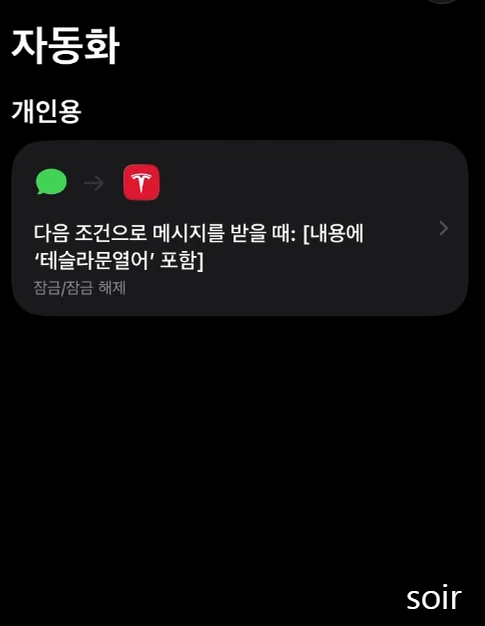
If your iOS version shows Privacy → Allow Running When Locked in the shortcut’s details, review that setting too. A message trigger running automatically does not guarantee that every action can run while the phone is locked.
If your iPhone is locked inside
- Ask the trusted contact you selected to send the exact phrase to your iPhone.
- If you allowed any sender, you can ask someone nearby to send it from their phone instead.
- When the message arrives, the automation attempts to unlock your Tesla. Check that the door has unlocked before opening it.
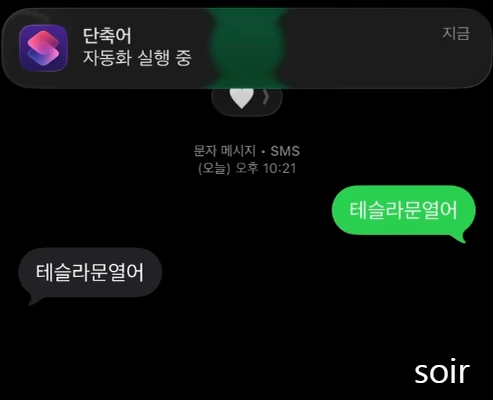
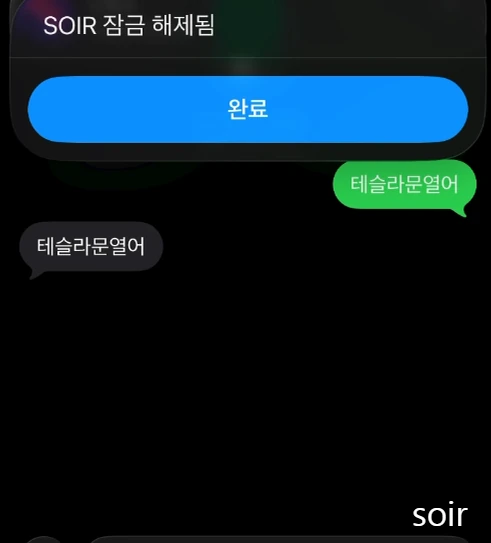
This unlocks the doors; it does not physically open a door or enable driving. After recovering your phone, check that the car is locked when you leave it.
Keep this backup private
- Use a long, unique phrase. Share it only with trusted people, never on social media.
- Restrict the sender where possible. Change the phrase if you have shared it with someone else.
- Do not add remote start or driving actions to this automation.
- Keep a physical key available. Treat the automation as a backup, and test it again after app or iOS updates.
If it doesn’t run
Check that the iPhone is powered on, receives the message, and matches the sender and phrase conditions. Confirm the Tesla app is still signed in, mobile access is enabled, and the unlock action works manually.
Remote app commands normally need connectivity for both the phone and car; supported commands can also work over Bluetooth nearby. A dead phone, failed message delivery or a locked-screen permission prompt can prevent this backup from working.
If your test still needs a confirmation on the phone, don’t rely on the automation for a lockout.
Menu and connection help: Apple: message triggers · Apple: automatic execution · Tesla: mobile app.