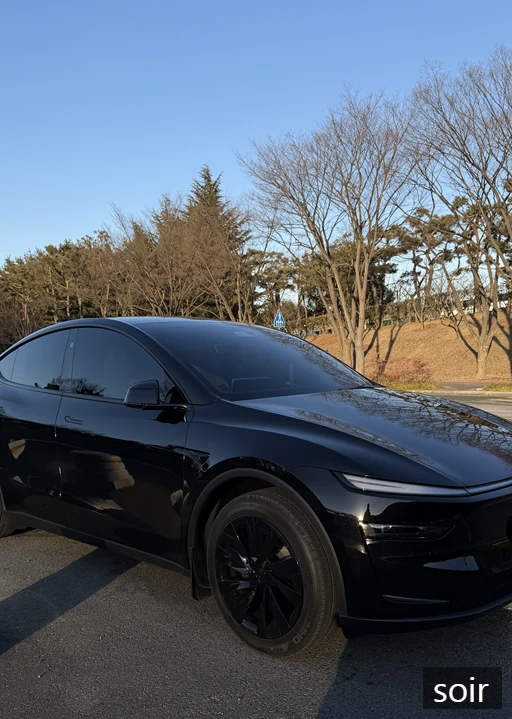
실제 경험 사례 – 촬영 중 벌어진 일
테슬라를 처음 인도받은 날,
릴스를 촬영하기 위해 차량 주변을 움직이다가
아이폰을 차 안에 둔 채 문을 닫았습니다.
“설마 잠기겠어?”
하지만 문은 단단히 잠겼고, 아이폰은 차 안에 그대로 남아 있었습니다.
보험사 긴급출동을 요청했지만 돌아온 답은 이렇습니다.
“테슬라는 저희가 문을 열 수 없습니다.” (출동도 안했습니다)
결국 가족이 카드키를 들고 와야 했고,
한참을 기다린 후에야 해결할 수 있었습니다.
그때 깨달았습니다.
아이폰 차 안에 두고 문 잠겼을 때
해결 방법을 미리 준비하지 않으면 큰 불편을 겪을 수 있다는 것.
아이폰 단축어 자동화란?
Shortcuts(단축어) 기능이 있습니다.
이 기능을 활용하면:
특정 문자 수신 시
특정 조건 충족 시
자동으로 지정 동작 실행
이 시스템을 이용해 문자 한 통으로 테슬라 문을 열 수 있도록 설정할 수 있습니다.
아이폰 차 안에 두고 문 잠겼을 때 해결 방법 핵심 설정
준비물 체크리스트
아이폰
테슬라 앱 로그인 상태
Tesla Unlock 단축어 미리 생성
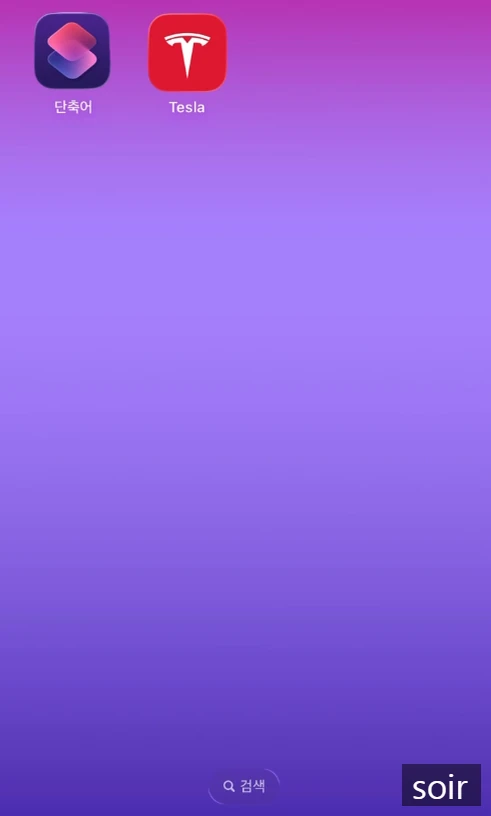
① 단축어 앱 실행
단축어 앱 실행
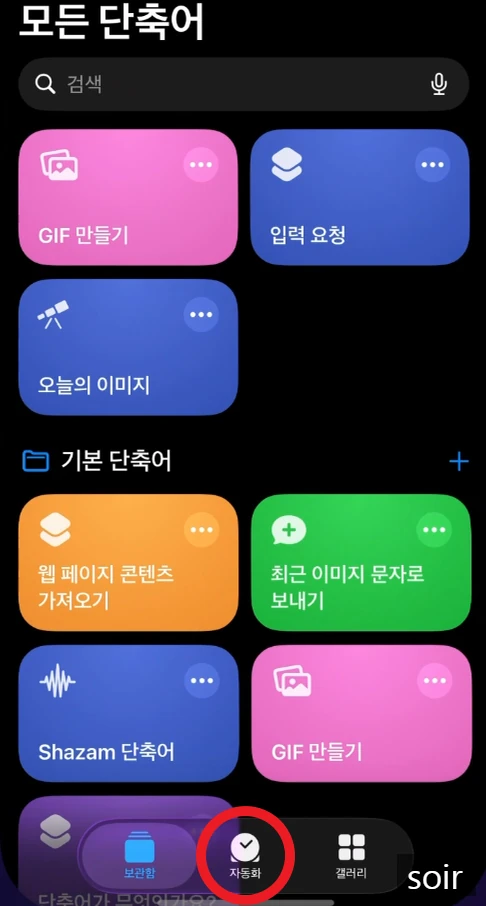
하단 가운데 (자동화) 선택
② 개인 자동화 생성
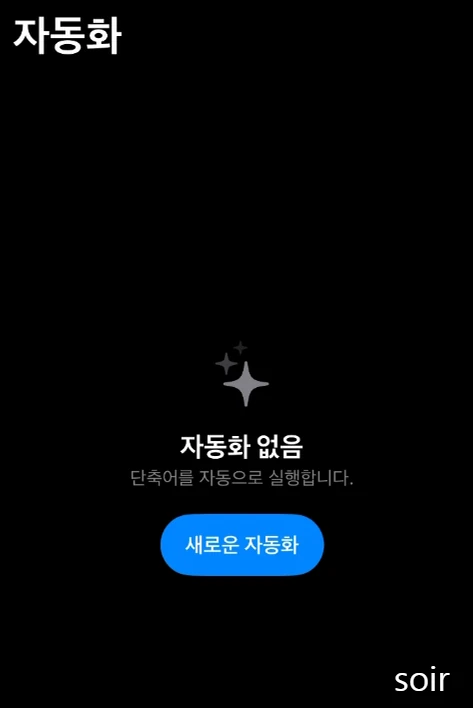
새로운 자동화 선택
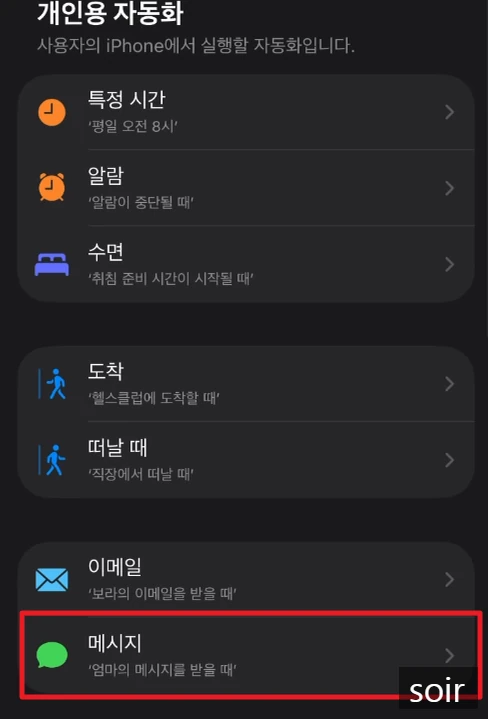
Message 선택
③ 조건 설정
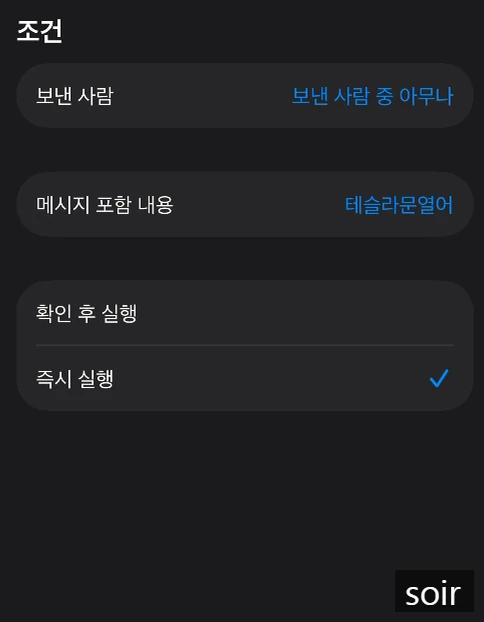
보내는 사람 : 아무나
메시지 포함내용: 암호 문구 입력
예: 테슬라문열어, 커스텀 가능함
즉시 실행 반드시 선택
이 설정이 핵심입니다.
④ 실행 동작 선택
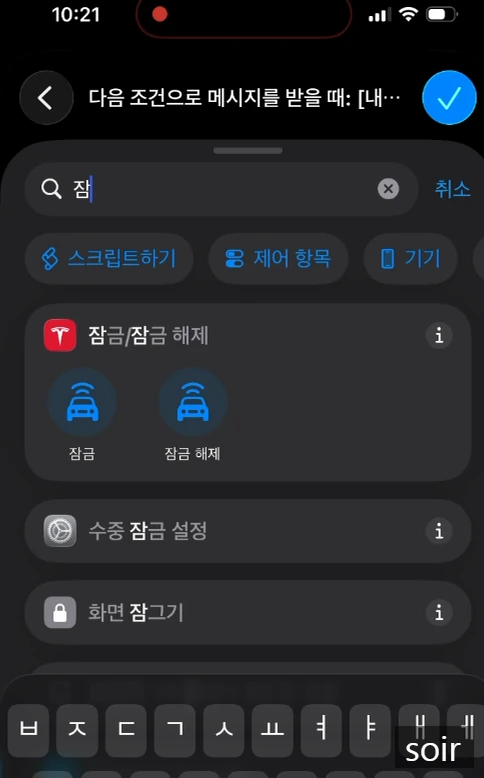
다음 누르고 검색창에 잠금 입력
잠금해제 선택
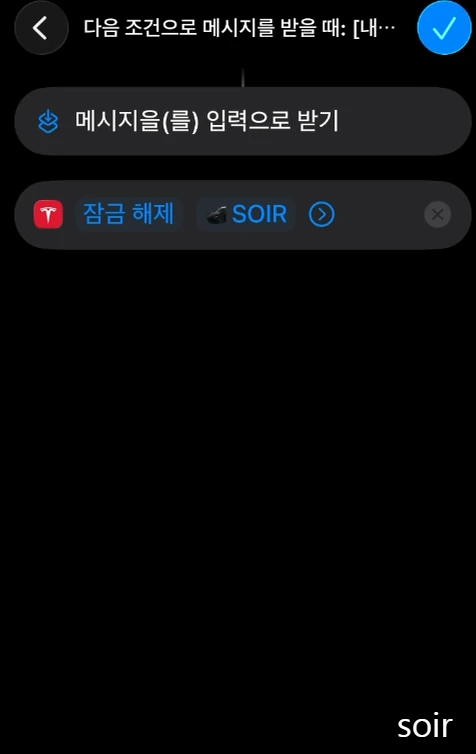
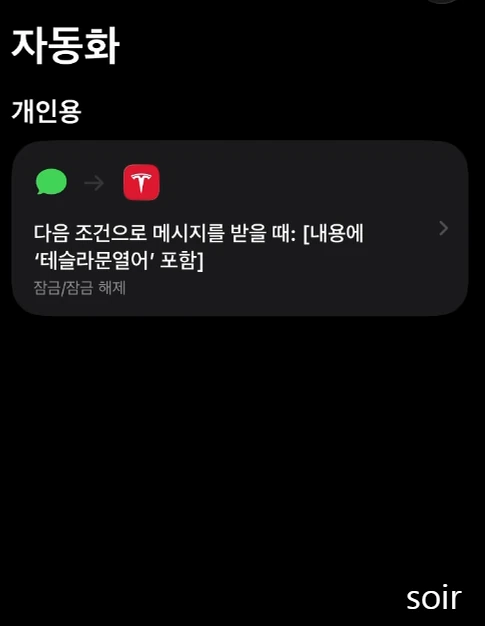
⑤ 저장 및 권한 허용
완료 후 저장
최초 1회허용 클릭
이제 설정 완료입니다.
실제 사용 방법
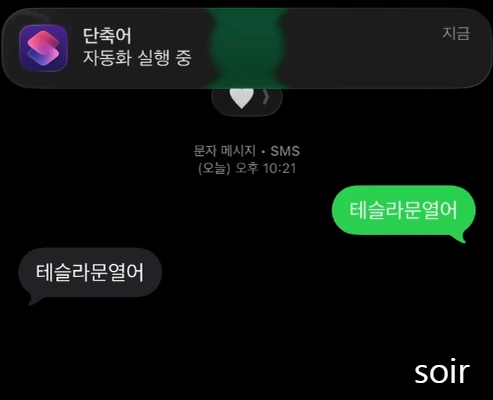
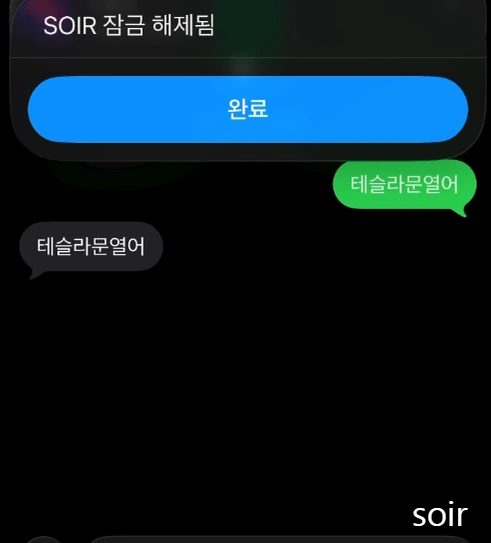
방법 1: 본인에게 문자 보내기
예:
테슬라문열어
문자 수신 즉시 문 자동 오픈
방법 2: 주변 사람에게 요청
핸드폰이 차안에 있어 사용하지 못하니
결국 주변 사람이나, 가족에게 문자하나 보내달라고 연락을해야합니다.
“이 문구 그대로 문자 하나만 보내주세요.”
즉시 해결됩니다.
이런 상황에서 특히 유용합니다
아이폰 차량 내부 방치
급하게 문이 잠긴 상황
아이폰 차 안에 두고 문 잠겼을 때 해결 방법으로 매우 강력합니다.
보안 리스크와 반드시 알아야 할 주의사항
이 설정은 편리하지만 위험 요소도 있습니다.
⚠️ 보안 리스크
암호 문구를 아는 사람이 문자 전송 시 문 열림
원격 시동 자동화는 절대 비추천
실사용은 비상 상황 한정
보안을 강화하는 방법
암호 문구를 길게 설정
주기적으로 암호 변경
가족에게만 공유
SNS에 공개 금지
보안은 항상 편의보다 우선입니다.
테슬라 주니퍼 오너라면 꼭 알아야 할 스마트 설정
Tesla Model Y 주니퍼 모델을 운용하다 보면 작은 설정 하나가 큰 차이를 만듭니다.
아이폰 차 안에 두고 문 잠겼을 때 해결 방법은 단순 팁이 아닙니다.
테슬라 오너의 필수 대비 전략입니다.
한 줄 정리
아이폰 단축어 자동화를 활용하면
특정 문자를 받는 순간 테슬라 문을 열 수 있다.
지금은 필요 없어 보일 수 있습니다.
하지만 정말 난감한 순간, 이 기능이 빛을 발합니다.
저장해두면 언젠가 반드시 도움이 됩니다.
How to Unlock Your Tesla When Your iPhone Is Locked Inside
Step-by-Step Setup (Based on iPhone English UI)
1. Open the Shortcuts app
Open Shortcuts.
Tap Automation at the bottom center.
2. Create a new personal automation
Tap New Automation.
(If you see Create Personal Automation, tap that.)
Select Message.
3. Set the trigger conditions (When)
In the Message automation screen:
• Sender → set to Anyone
• Message Contains → enter your secret passphrase
Example passphrases:
• TeslaOpenDoor
• UnlockMyTesla
• JuniperDoorCode123
IMPORTANT:
• Turn ON Run Immediately
• If you see Run After Confirmation, turn it OFF
This setting is essential. Without it, you must manually confirm each time.
4. Choose the action to run (Unlock Tesla)
Tap Next.
Tap New Blank Automation.
Tap Add Action.
Search for Run Shortcut.
Select Run Shortcut.
Tap the blue Shortcut field and choose your Tesla unlock shortcut.
Example shortcut names:
• Unlock Tesla
• Tesla Unlock
• Unlock Model Y
This step tells the phone:
When the message arrives → run the Tesla unlock shortcut.
5. Save and allow permissions
Tap Done to save.
The first time it runs, iOS may ask for permission.
Tap Allow to enable proper operation.
Setup is now complete.
How to Use It in a Real Situation
Method 1: Send the message to yourself
If you have access to another device:
Send an SMS to your phone number.
The message must include your passphrase exactly.
Example:
TeslaOpenDoor
Result:
As soon as your iPhone receives the message,
the automation runs and your Tesla unlocks.
Method 2: Ask someone nearby to send the message
If your phone is locked inside the car:
Ask a nearby person or family member:
“Could you send this exact message to my phone?”
Tell them the passphrase exactly.
When your iPhone receives the text, the door unlocks immediately.
When This Is Especially Useful
• Phone locked inside the car
• Key card left behind
• Traveling without spare key access
• Emergency situations
This can be a powerful backup solution.
Security Risks & Important Notes
This setup is convenient, but it carries security risks.
⚠ Anyone who knows the passphrase can unlock your car via SMS.
⚠ Do NOT automate remote start or driving functions.
⚠ Use this only as an emergency backup.
How to Improve Security
• Use a long, unique passphrase
• Change the passphrase periodically
• Share only with trusted family members
• Never post the phrase publicly
Security should always come before convenience.
Quick Summary
Using iPhone Shortcuts automation,
you can unlock your Tesla instantly
when a specific text message is received.
You may never need it.
But when you do,
it can save you from a very stressful situation.
Save this setup — you may be glad you did.